APN Settings: The Invisible Key to Mobile Internet
Admittedly, in the age of 5G and AI solutions at every turn, it seems almost nostalgic that an internet connection can fail due to something like device settings. In most cases, we activate a mobile plan and smartphones or other devices automatically make the necessary settings in the background. However, if this does not work, manual APN configuration is the most important tool for you to troubleshoot connection problems.
What Exactly Is APN?
The abbreviation APN stands for Access Point Name. You can think of the APN as a signpost that tells your device which route to take to send and receive data. Technically, the APN is the identifier for a specific gateway interface between the mobile network and the public internet.
As soon as your smartphone or other mobile device requests a data connection, it sends the configured APN to your mobile provider’s network. The data connection is then established and your device is assigned an IP address.
If the APN configuration is not set up or is incorrect, your device and the mobile network will not have the information they need to connect to the Internet.
Why Doesn’t It Always Work Automatically?
Normally, when you insert a SIM card for the first time or install an eSIM profile for the first time, the APN configuration is sent to the device by the provider. This happens in the background and is usually not visible to you.
There are devices that cannot receive this configuration message. These include certain IoT devices such as trackers and some cameras or routers.
Software updates can be another problem. In rare cases, a system update can delete the APN settings on the device, even on smartphones.
How Do I Configure the APN Settings?
Fortunately, manual APN configuration is not complicated and can be done via a settings menu on most devices. On smartphones and most other Android or iOS-based devices, this can be found under the “Internet” or “Network” settings for the SIM card or eSIM.
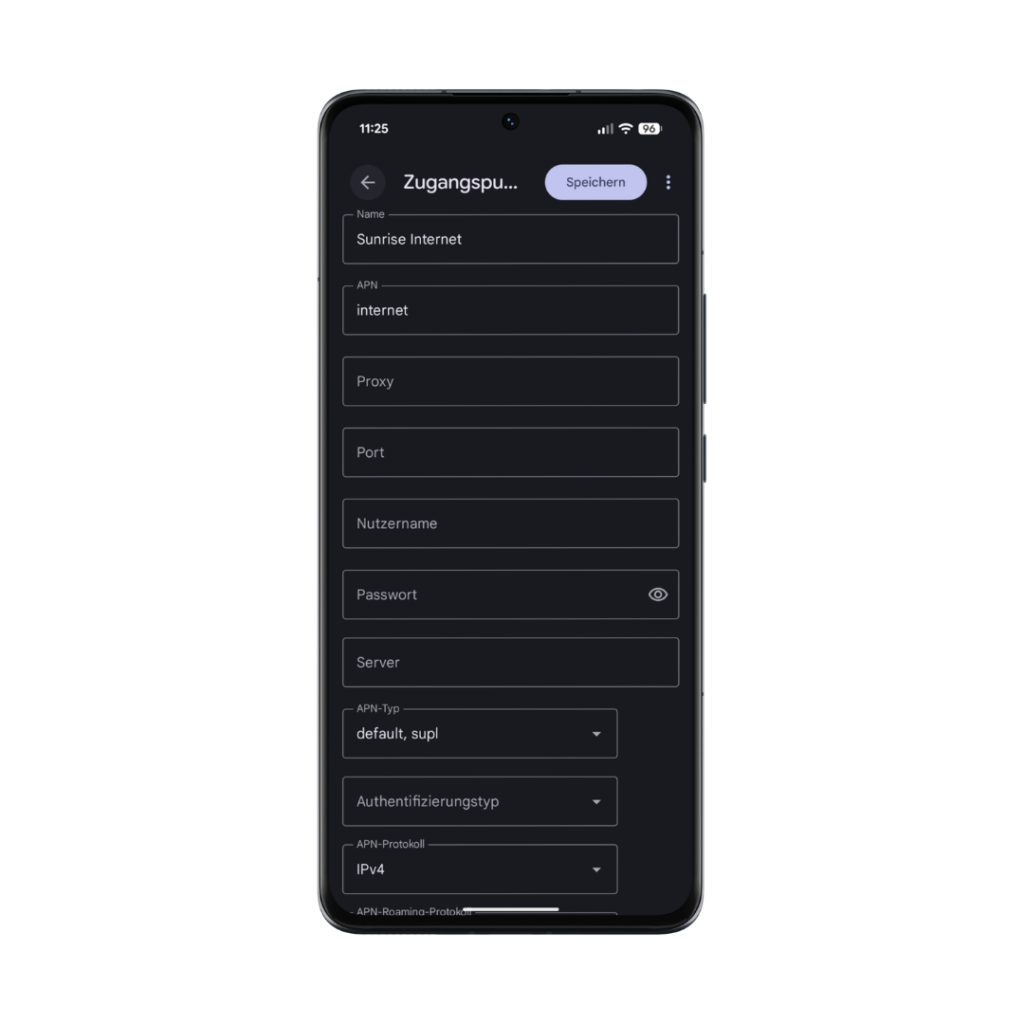
There you will find various fields in which you can enter your provider’s APN settings. Once you have updated the settings, you may need to restart the device or briefly turn flight mode on and off so that the device can reconnect to the network.
These Are the Correct APN Settings for Digital Republic
| Country | Switzerland |
| Network Operator | Others |
| Name | Sunrise Internet |
| APN | internet |
| Username | leave empty |
| Password | leave empty |
| Authentication Type | PAP |
| APN Type | default |
| PDP | IPV4 |
| PDP Roaming | IPV4 |
Related posts

By 2025, every second new car sold will have a power plug. The trend toward e-cars can no longer be stopped. Compared to gasoline pumps, e-charging stations are smart and […]

Sometimes sooner, sometimes later, but at some point it is due: The purchase of the first smartphone for the child. What you need to consider when choosing a device and p […]
From now on you can pay your subscription alternatively with TWINT. Open your customer account, go to „payment methods” and switch to TWINT.
Try changing your search parameters.